Sunday, October 7, 2012
Saturday, October 6, 2012
How to create a shortcut for 'Safely Remove Hardware" dialog
We often find it annoying to find the safely remove hardware icon in the system tray.Can't we create a shortcut to do this?yes,of course we can do it.want to create one then go on.....
1. Create a shortcut key by clicking anywhere on the desktop and create a new shortcut.
2. In the Type the location of the item field please paste the following and click on next
"RunDll32.exe shell32.dll,Control_RunDLL hotplug.dll"

3. Now name it with any name you like and click Finish.
4. If you want to assign a shortcut key to it right click on shortcut and click on properties. 
5. Now in the Shortcut key field type the shortcut key you want to assign Example: CTRL+F12 and click on ok and you are done.

As long as the shortcut is on your desktop you shouldn’t have to restart anything for the hotkey to work. You can also move the shortcut to another folder, for instance your quick launch bar.
Print Page
Monday, October 1, 2012
How to access God mode in Windows 7
God mode basically is a windows 7 trick that will help the user to access to all of the operating system's control in one folder.The trick is also said to work in Windows Vista, although some are warning that although it works fine in 32-bit versions of Vista, it can cause 64-bit versions of that operating system to crash.
Create a new folder with the name given below
GodMode.{ED7BA470-8E54-465E-825C-99712043E01C}
After creating the folder the icon automatically changes to the control panel .
Although its name suggests perhaps even grander capabilities, Windows enthusiasts are excited over the discovery of a hidden "GodMode" feature that lets users access all of the operating system's control panels from within a single folder.
So that's all for today folks.Meet you later in another post.If you like the post feel free to share the link
Print Page
How to add any application to the context menu
So many people want to launch a frequently used application in the right click menu.In this post i will explain how to add a specific application to the context menu.Follow these simple steps to add a specific spplication to the context menu:
Print Page
1.Click on windows start and type "run" and press enter.
2.Type "regedit" and click ok.
3.A dialogue box appears asking "Do you want to allow the following program to make any changes to this computer?" .press "yes".
4.It will open Registry Editor.
5.Go to "HKEY_CLASSES_ROOT\Directory\Background\shell"
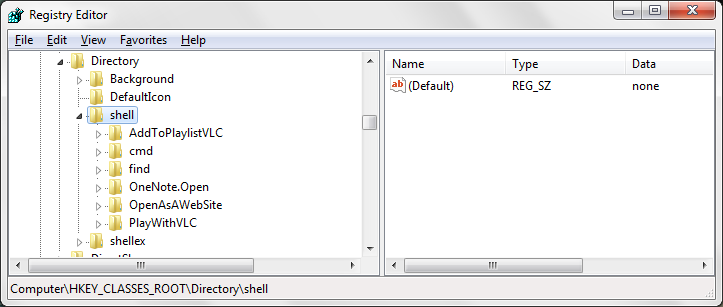
6.Right click on shell and create key called "Notepad".
7.Right click on notepad and create a new key names command.
8.Right click on (Default) and click on modify and change the value data to "C:\Windows\System32\notepad.exe".(i.e giving the directory of notepad application).
9.You can now see Notepad in the right click of the desktop context menu.
So, that's it folks if you have any queries about this pls feel free to comment below.Thank you for your visit and patience.
Print Page
Saturday, September 29, 2012
How to add control panel to my computer
In the previous post i told you how to add recycle bin yo my computer.In this post i would like to tell you how to add control panel to my computer.Follow these given simple steps.
1.Click on windows start and type "run" and press enter.
2.Type "regedit" and click ok.
3.A dialogue box appears asking "Do you want to allow the following program to make any changes to this computer?" .press "yes".
4.It will open Registry Editor.
CurrentVersion\Explorer\MyComputer\NameSpace".
7.After completing the above step the registry editor should look like
Print Page
To add RECYCLE BIN to MY COMPUTER
Have you ever thought of adding recycle bin to my computer.If you want then follow these simple steps to make so :
1.Click on windows start and type "run" and press enter.
2.Type "regedit" and click ok.
3.A dialogue box appears asking "Do you want to allow the following program to make any changes to this computer?" .press "yes".
4.It will open Registry Editor.
5.Go to "HKEY_LOCAL_MACHINE\SOFTWARE\Microsoft\Windows\
CurrentVersion\Explorer\MyComputer\NameSpace".
6.Create a new key and name it as "{645FF040-5081-101B-9F08-00AA002F954E}".
7.After completing the above step the registry editor should look as
Hope you enjoyed the post.please share it as it may be useful to others.
Want to add control panel to my computer then read How to add control panel to my computer.
1.Click on windows start and type "run" and press enter.
2.Type "regedit" and click ok.
3.A dialogue box appears asking "Do you want to allow the following program to make any changes to this computer?" .press "yes".
4.It will open Registry Editor.
5.Go to "HKEY_LOCAL_MACHINE\SOFTWARE\Microsoft\Windows\
CurrentVersion\Explorer\MyComputer\NameSpace".
6.Create a new key and name it as "{645FF040-5081-101B-9F08-00AA002F954E}".
Hope you enjoyed the post.please share it as it may be useful to others.
Want to add control panel to my computer then read How to add control panel to my computer.